


The classical frame can be combined with other effects e.g. the simple quickmask applications given by Zach Beane at the GIMP's site. Note that in this case, you have to only deal with a single layer ("layer4" in this post).
Steps
Showing posts with label GIMP. Show all posts
Showing posts with label GIMP. Show all posts
Tuesday, July 29, 2008

Monday, July 28, 2008
Classical Photo Frame
 The frame, as you can see above, intensively uses masks and bumpmap filters. It might be several other ways (for the rough steps given below) to produce equivalent effects.
Steps
Sunday, July 27, 2008

Friday, July 25, 2008
Text / Logo (2)
To produce the effect as shown below, I basically follow, to the most part, the guidance from gilberto@artmaster, except for some adjustment related to the current GIMP version.

Steps

Steps
Thursday, July 24, 2008

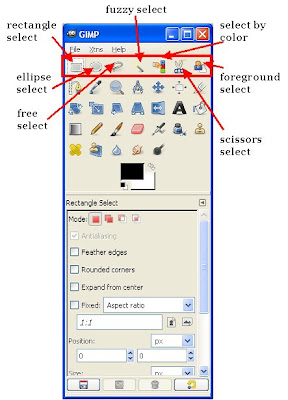
Brush & Selection Tools
Brush and selection tools belong to the most important tools in GIMP (agree??). The pics below show a visual overview for these groups of tools.
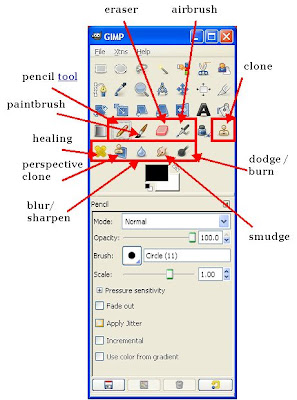
Brush Tools


Brush Tools
Rusty Metal Effect
Intention
This post describes a method to produce "rusty metal" effect in GIMP.

Steps
This post describes a method to produce "rusty metal" effect in GIMP.

Steps
Tuesday, July 22, 2008
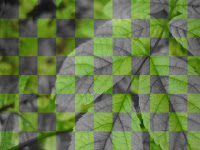
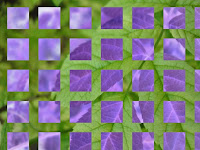
Mask Variations
Intention
This continues the previous post and shows variations which can be achieved using different masks.
Steps
This continues the previous post and shows variations which can be achieved using different masks.


Steps
Color Migration
Intention
This post describes a simple effect to produce images with (discontinuous) color variations, as can be seen below.


Summary
This post describes a simple effect to produce images with (discontinuous) color variations, as can be seen below.


Summary
Monday, July 21, 2008
Photo Frame : Heart
 This shall be my first post that addresses something different than all my previous posts. I've decided to "free" myself on what I have to write in this site :-)
It is about a simple trick to make a photo frame in GIMP (GNU Image Manipulation Program). Most of you might be already familiar with Photoshop; GIMP basically does the same thing, more-or-less. See here if you want to know more! The picture at the left shows the result.
Subscribe to:
Posts (Atom)
